Avicenna International College Help

Avicenna Online · Help

User Guide & platform tour

A practical walkthrough from your first visit to enrolled study — including the Learning Portal (lessons, highlights, AI assistant) and Canvas (grades and quizzes). No technical jargon; just what to click and when.

Five phases at a glance

1Discover
2Join & sign in
3Enroll & pay
4Learning Portal
5Canvas & help
1

Discover programmes

Explore before you register — no account required.

Step 1

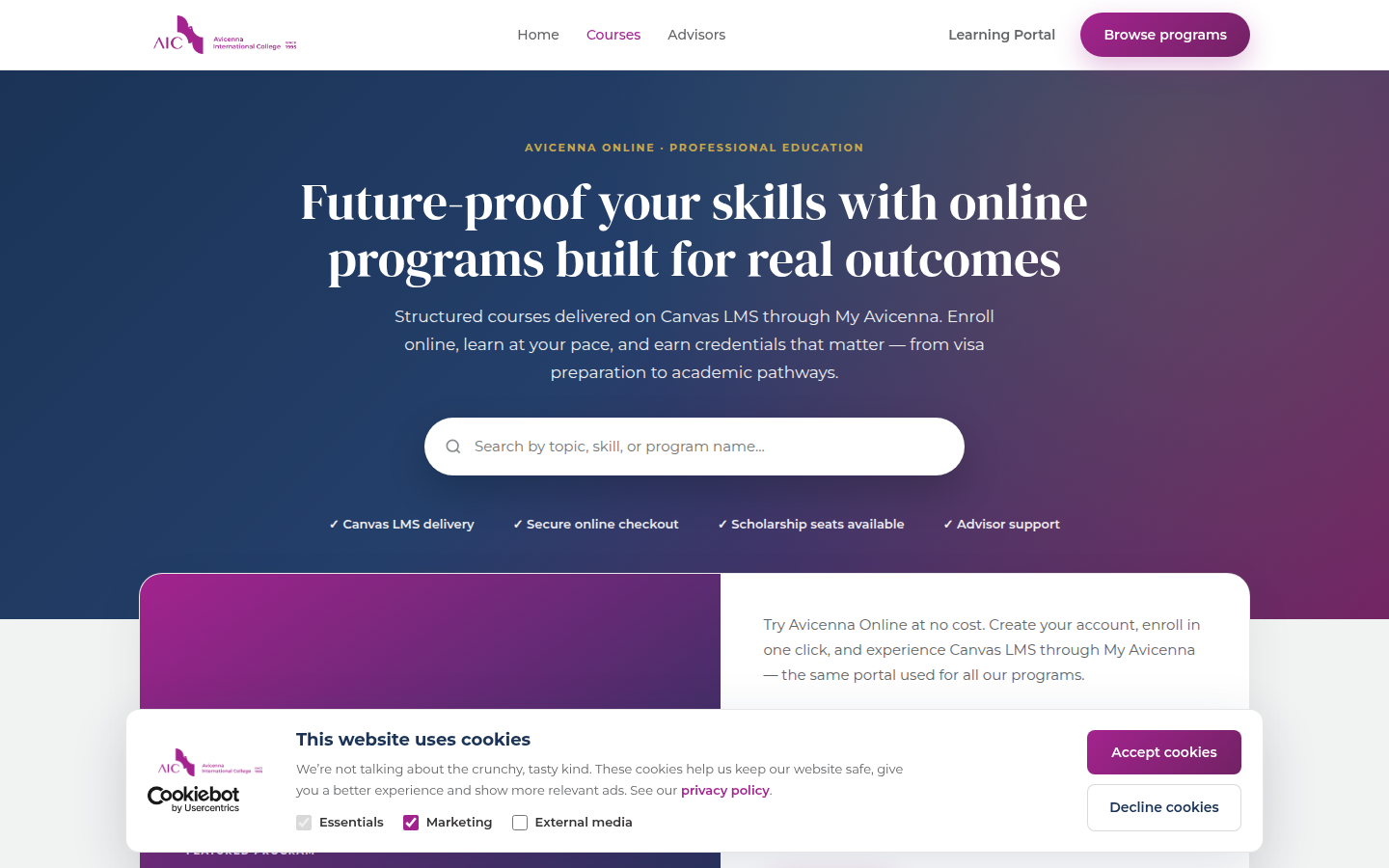
Visit Avicenna Online

The marketing site explains programmes, mentorship, and how online study works at Avicenna International College.

Tip: Bookmark avicennaonline.com and use Start learning when you are ready to register.
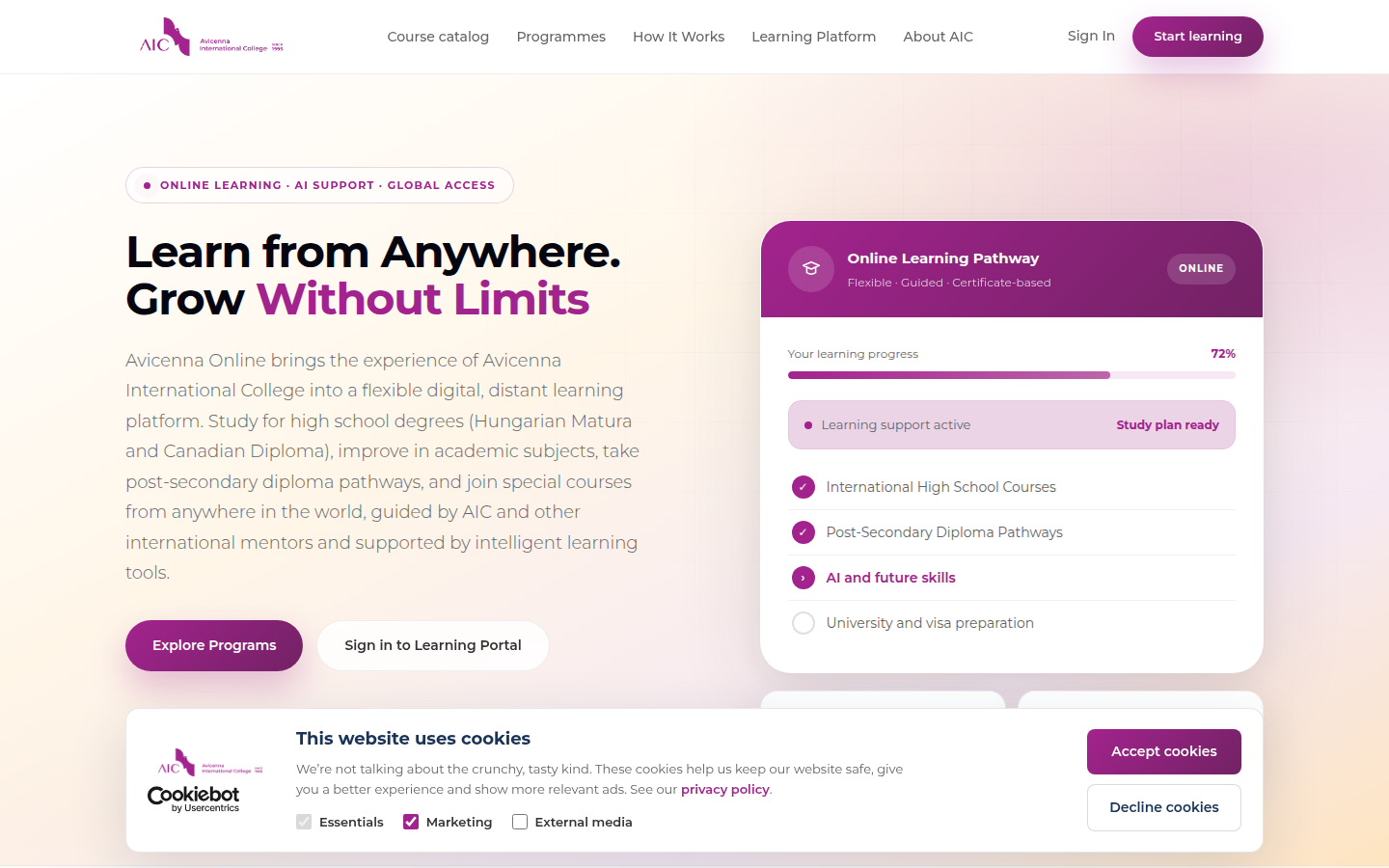
Avicenna Online homepage
Step 2

Browse the course catalog

Compare Welcome (free), HSVSP (Hungarian student visa programme), pricing, duration, and what each includes.

Tip: Start with the free Welcome course if you want to test the platform before a paid enrolment.
Course catalog
Step 3

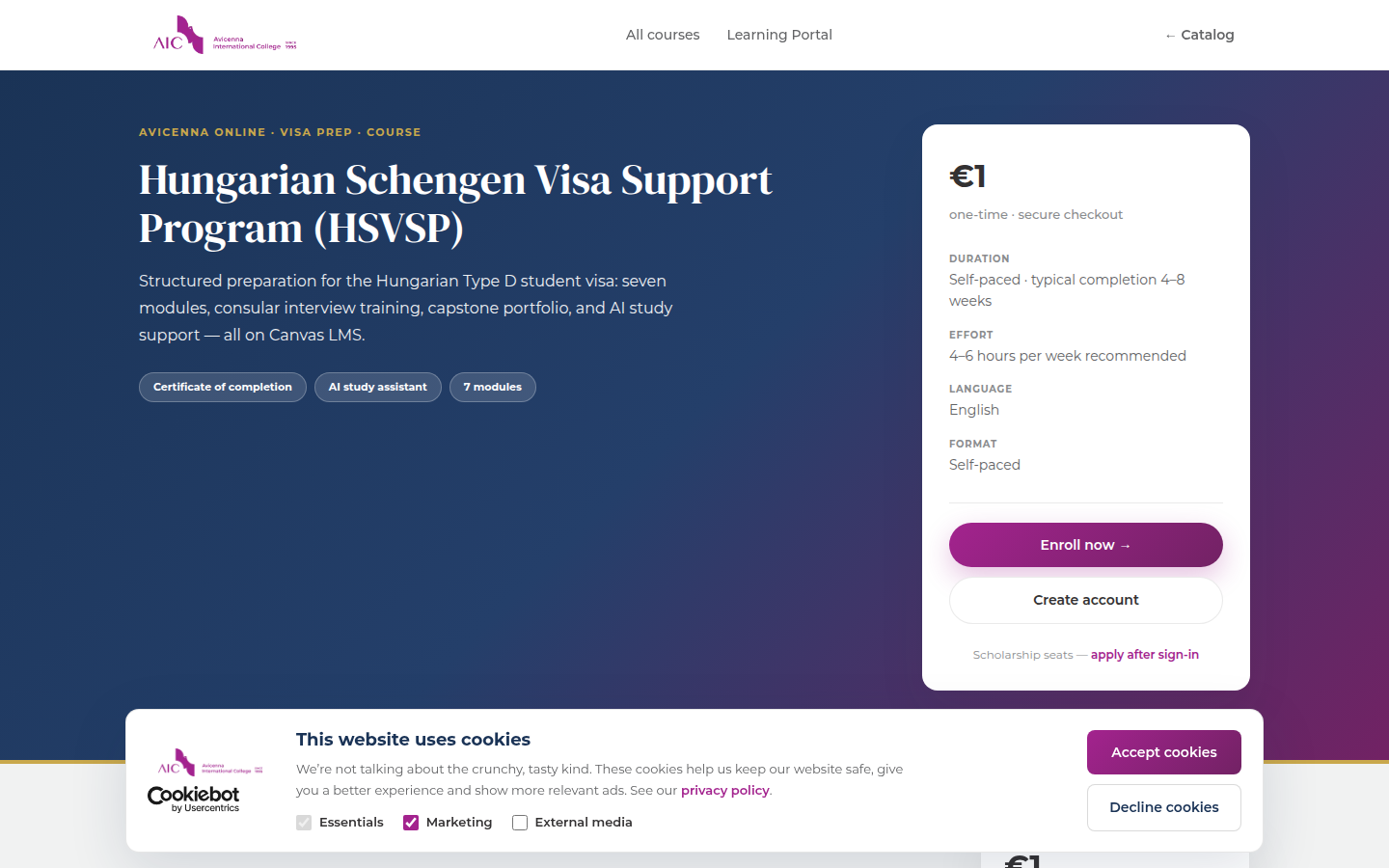
Open a course page

Read modules, outcomes, and FAQs. The Enroll button takes you to registration or My Avicenna if you already have an account.

HSVSP course detail
2

Create account & sign in

One identity for the portal, Learning Portal, and Canvas.

Step 4

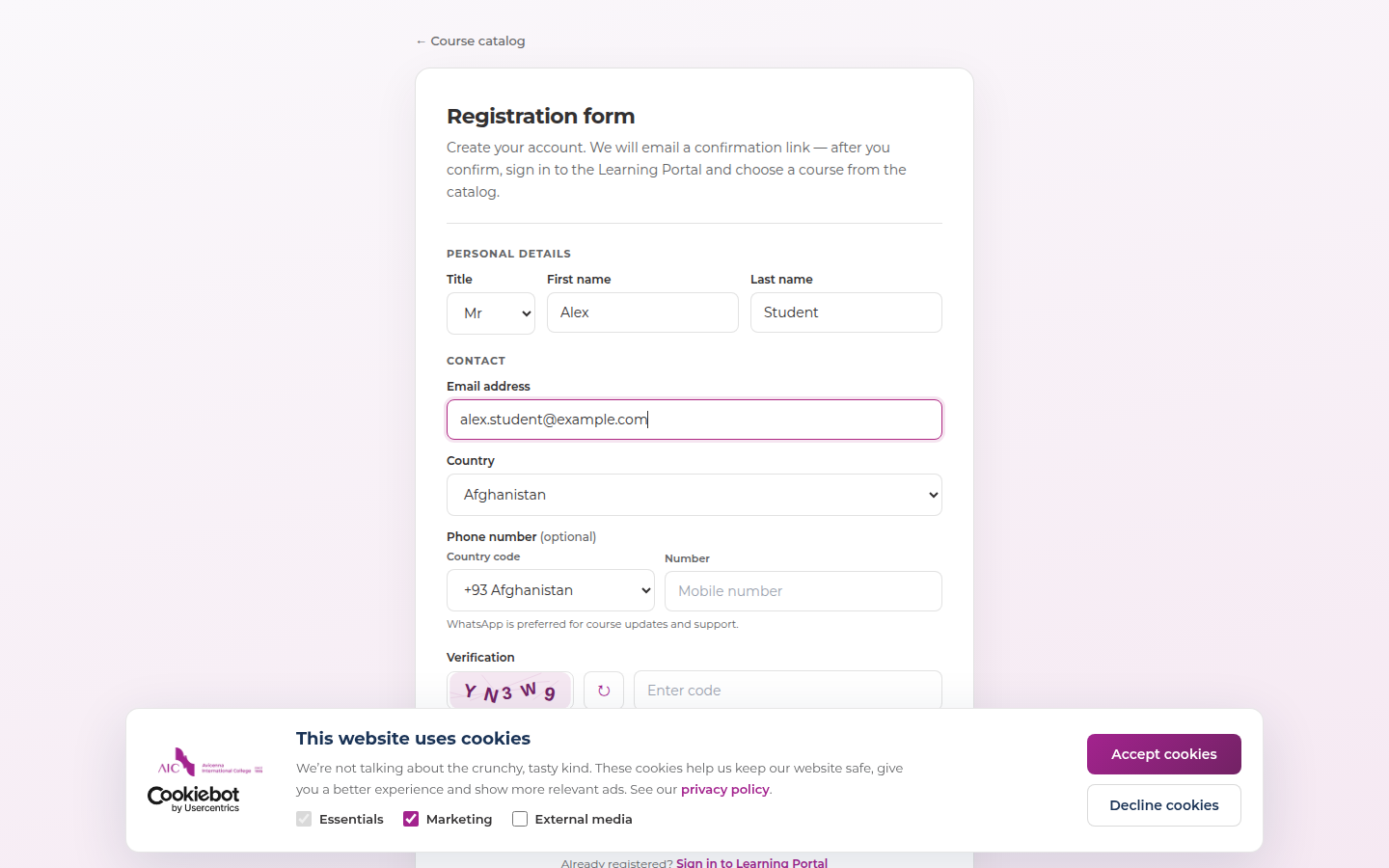
Register

Complete the form with accurate details. You will receive a verification email — check spam if it does not arrive within a few minutes.

Important: Use an email you can access long-term; it becomes your login and billing contact.
Registration form
Steps 5–6

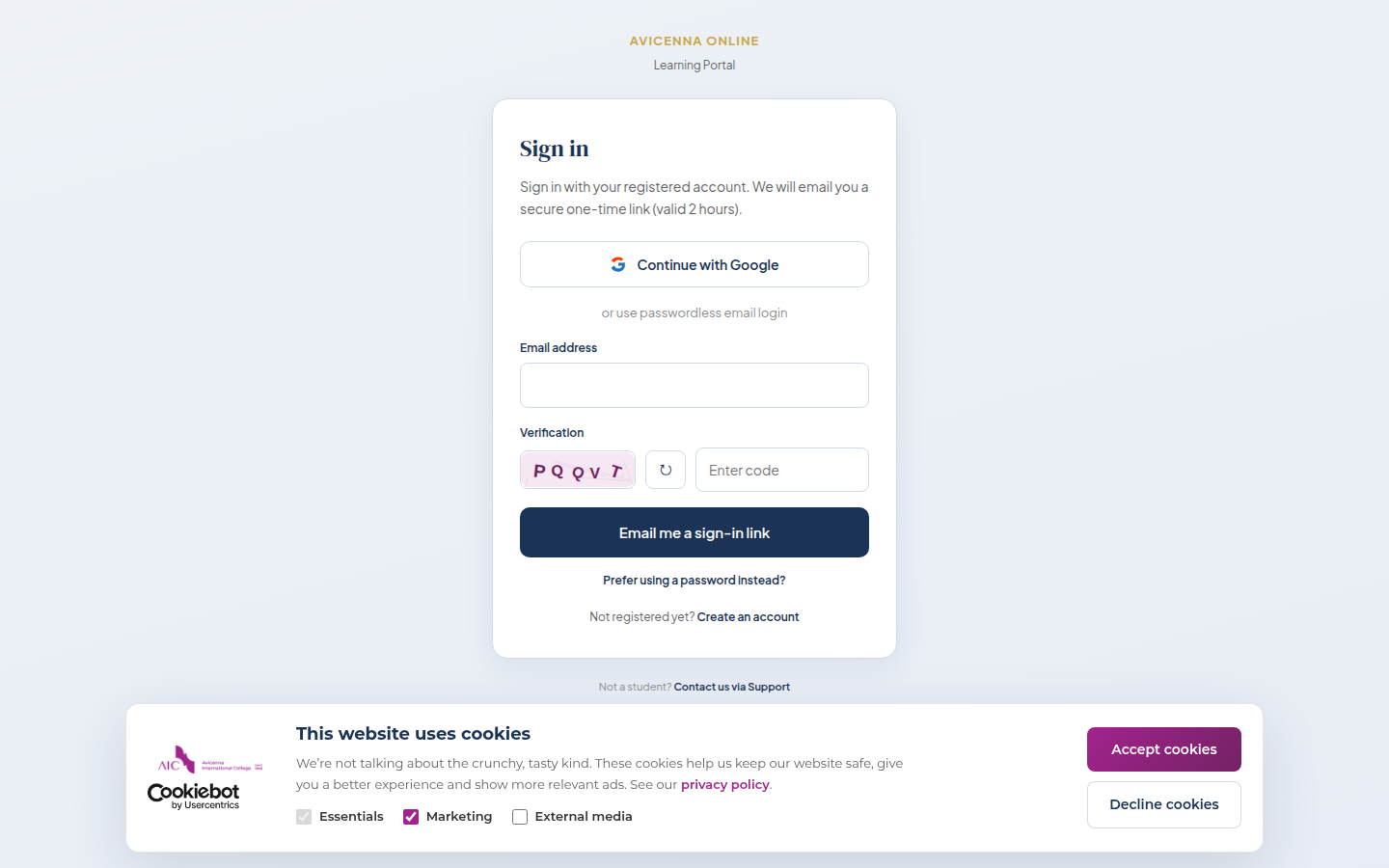
Sign in to My Avicenna

Choose Google OAuth, a one-time magic link, or email + password. Magic links are valid for two hours and single use.

Tip: Google sign-in is fastest if your Google address matches your registration email.
Portal login
Step 7

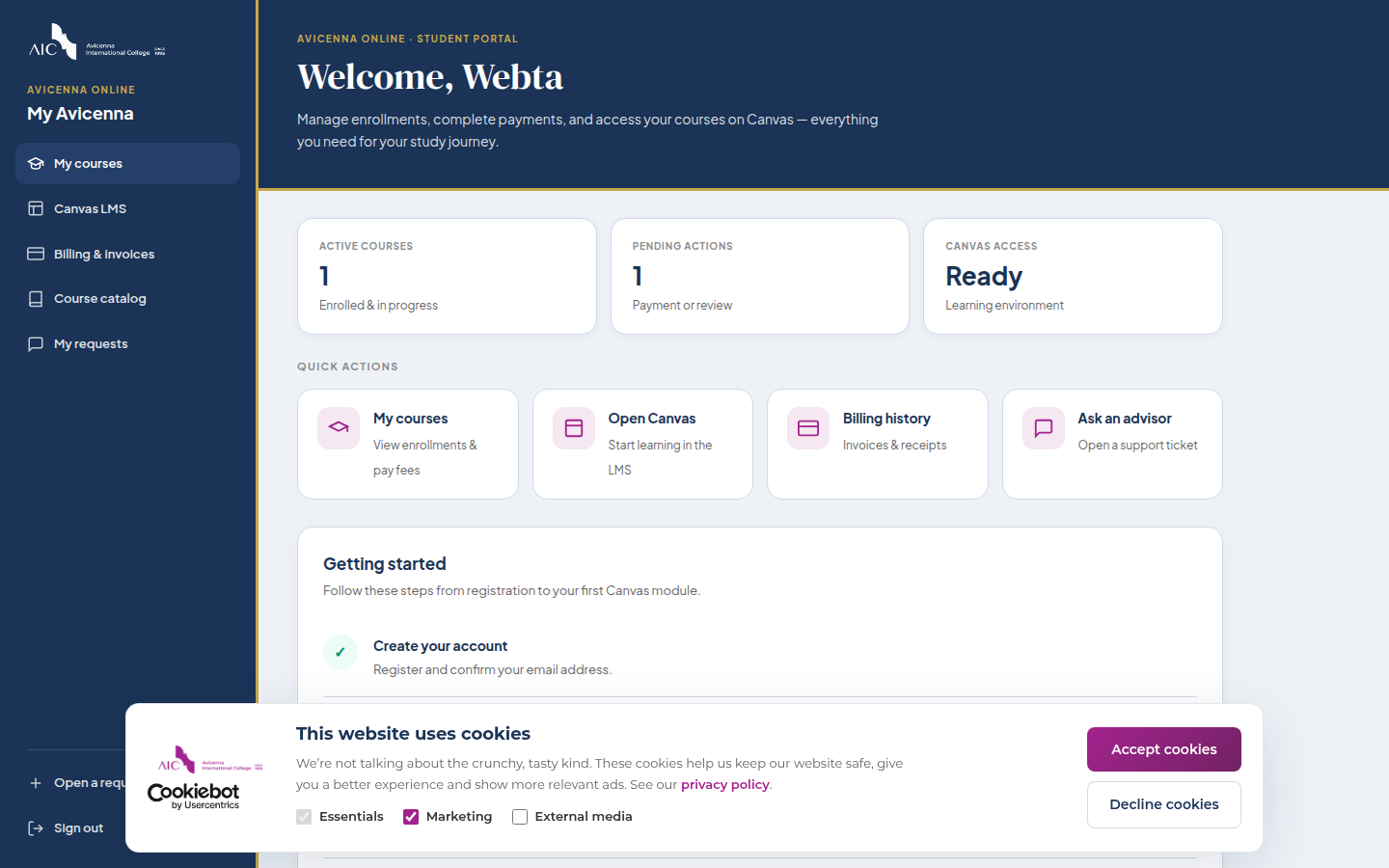
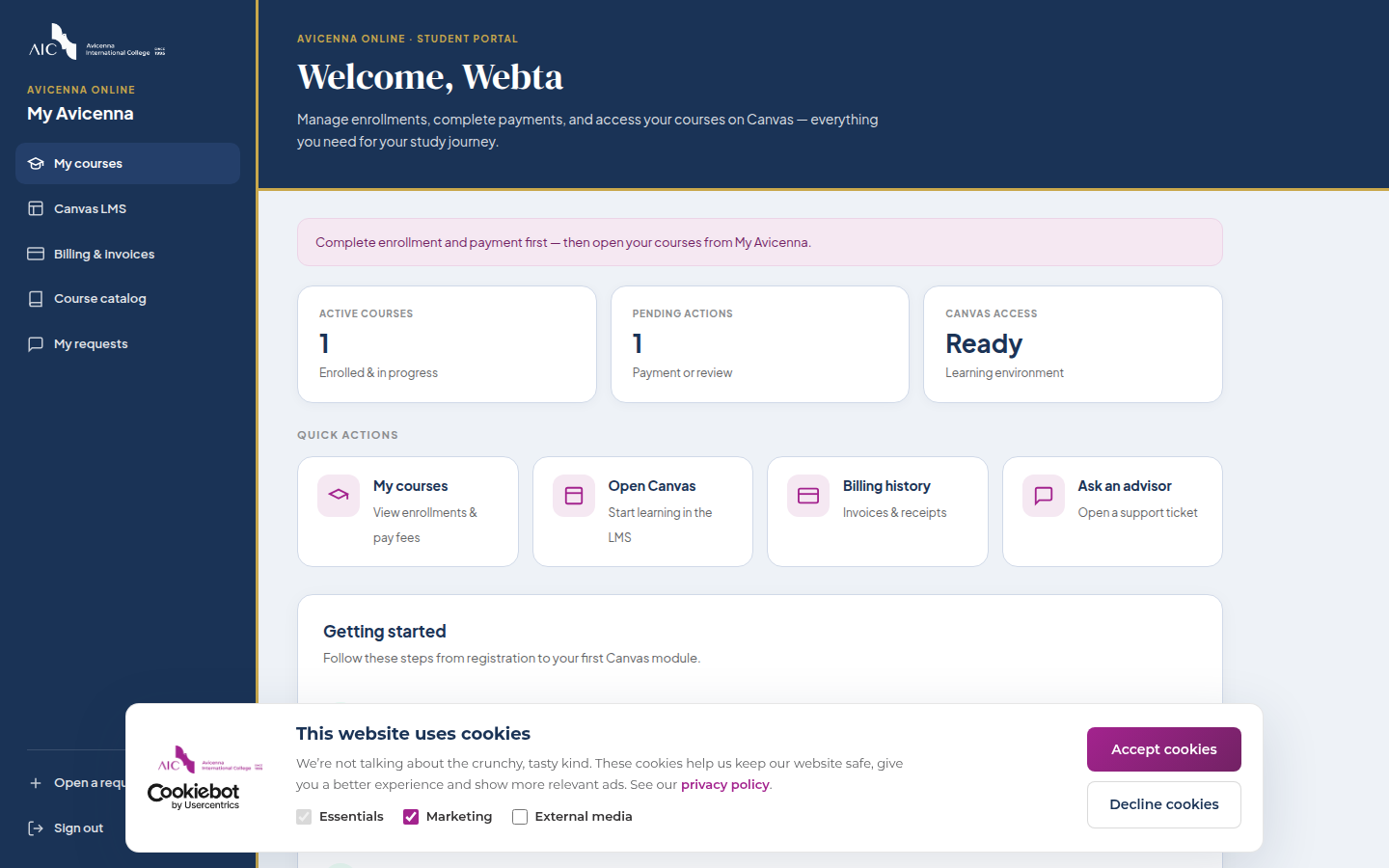
My Avicenna dashboard

Your hub shows enrolled courses, payment status, Canvas access, support, billing, and links to the Learning Portal.

My Avicenna dashboard
3

Enroll & pay

Unlock full access for paid programmes.

Steps 8–10

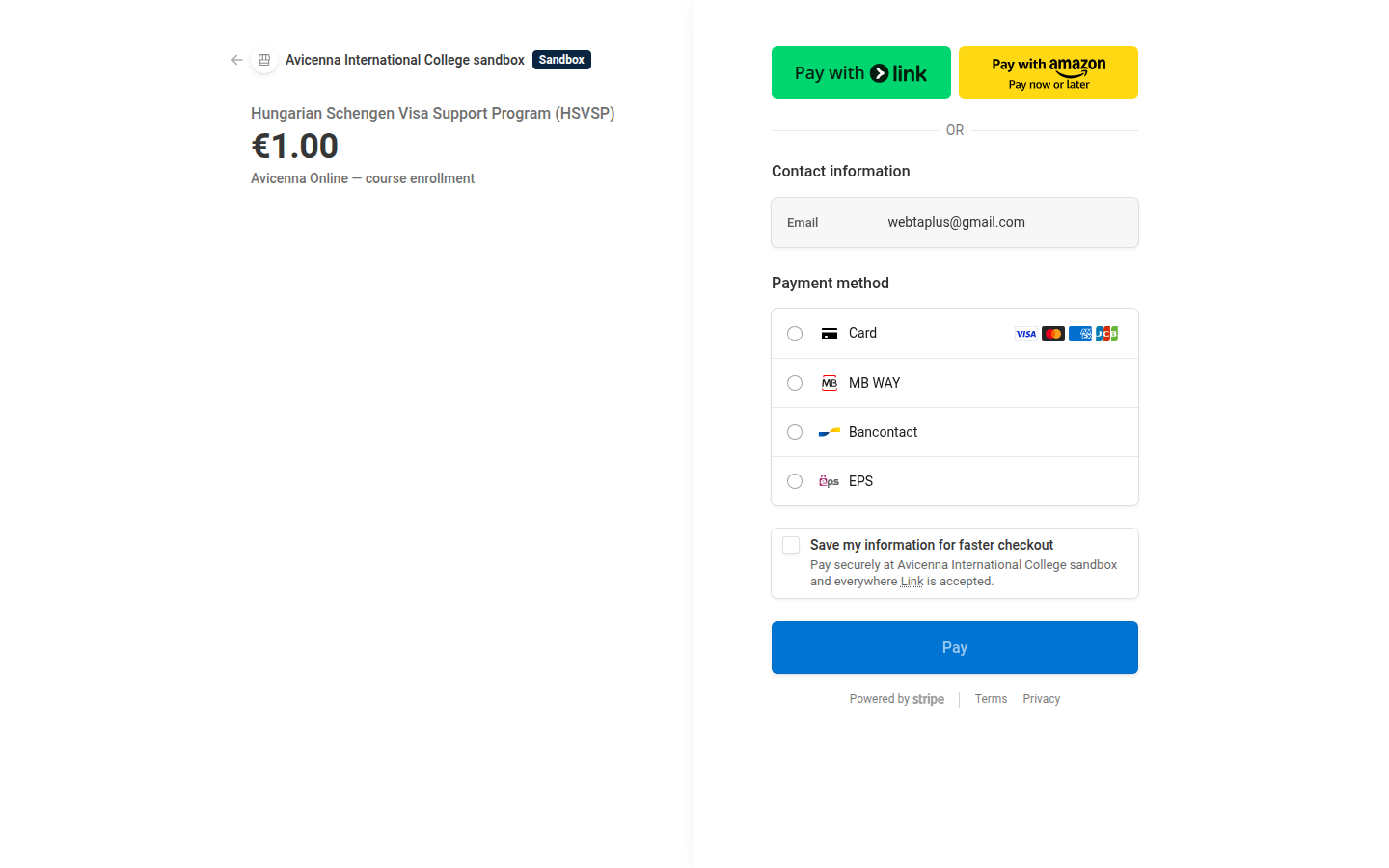
Enroll and complete payment

From the dashboard, enroll in HSVSP (or another paid course). Pay securely via Stripe. Invoices appear under Billing.

Tip: After payment, allow a few minutes for Canvas and course access to update. Refresh the dashboard if status still says pending.
Secure checkout
4

Learning Portal — study here

Read, highlight, listen, and use AI tools in one place.

Steps 11–12

Open a lesson

Go to Learning Portal → expand your course in the sidebar → pick a module and section. Use Listen for text-to-speech and arrows for next/previous section.

Tip: Highlights and notes stay in the Annotations tab while you read.
Learning Portal reader
Study tools

AI Assistant & NotebookLM

AI Assistant (sidebar) opens full-page academic chat trained on course materials. NotebookLM opens Google’s notebook for HSVSP — sign in with the same Google account or email address you used to enroll.

NotebookLM: Mastering the Hungarian Student Visa Application Process — use for summaries and interview practice. Google sign-in required.
Portal tools
5

Canvas & completion

Official LMS for quizzes, grades, and certificates.

Steps 13–14

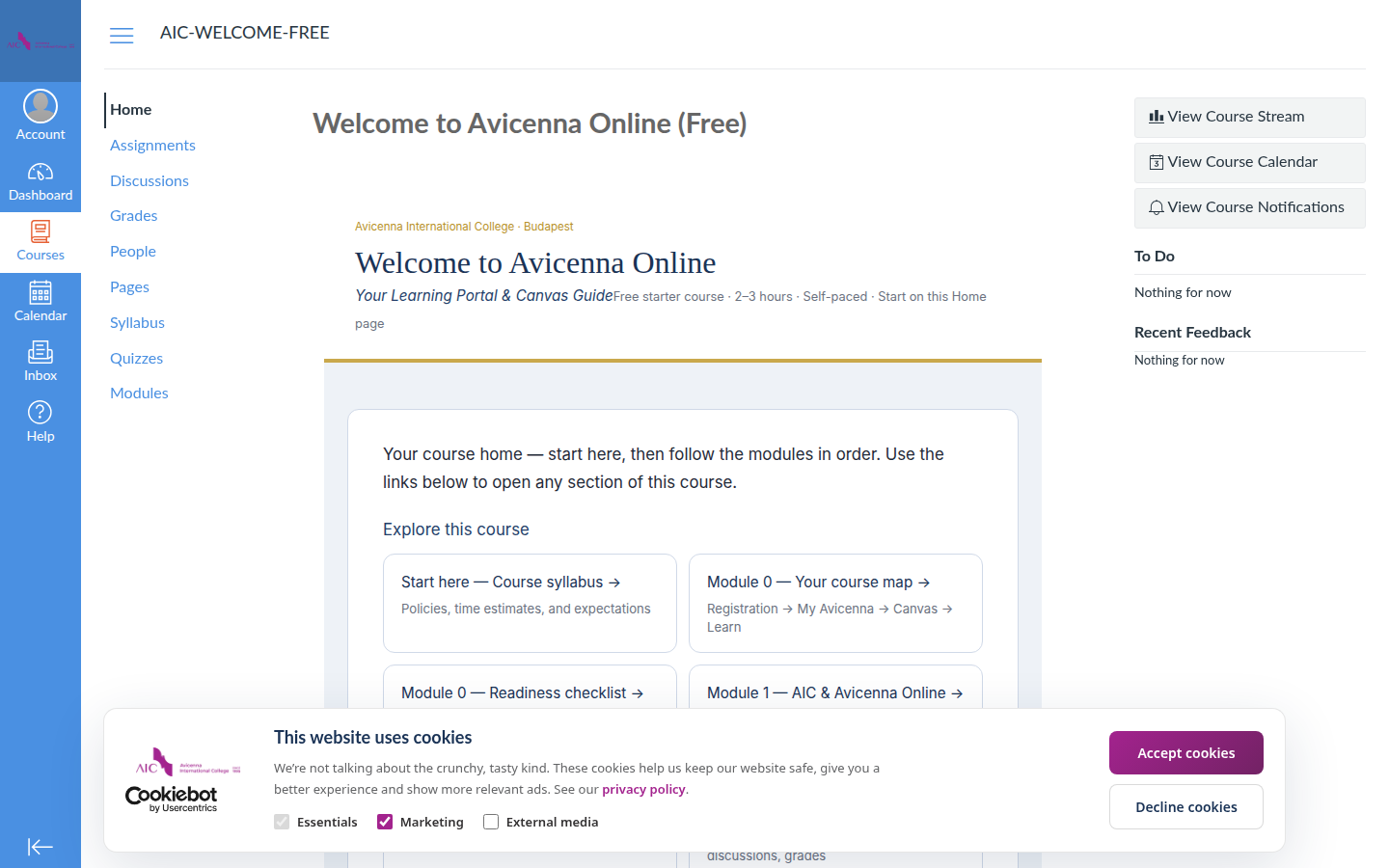
Open Canvas from My Avicenna

Canvas shows your course shell, modules, and assignments. Lesson pages embed the Learning Portal reader — you rarely read long text inside Canvas itself.

Canvas course
?

When you need help

Support channels that actually work.

Support tickets

My Avicenna → Support. Describe the issue, course name, and screenshot if possible. Typical reply within one business day.

Open support →

Billing & invoices

View payment history and download invoices from the Billing page after Stripe checkout.

Billing →

Email

For admission and account questions: admission@avicenna.hu · +36 30 823 7592

Restart this tour

Share this page: avicennaonline.com/help/ (User Guide)

Start tour again